
Quickstart
In five minutes you will have a private MQTT broker, a device publishing JSON over TLS and the values on a live dashboard. No card is needed.
Create your account
Open app.connectmq.com/signup and sign up with Google, LinkedIn or your work e-mail. If you use e-mail, enter the 6-digit code ConnectMQ sends you.
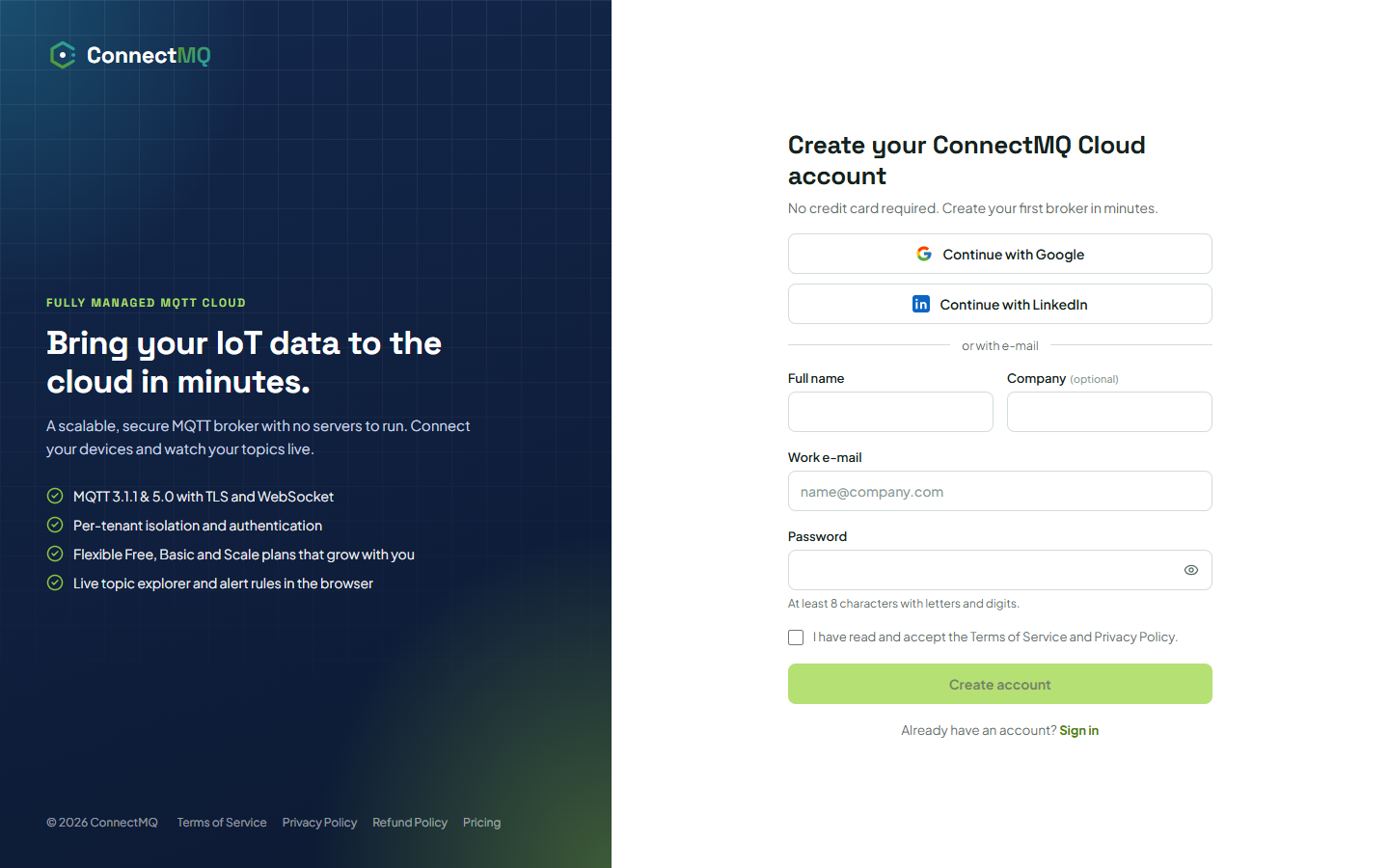
Details: Create your account.
Pick a use case and get your broker
The welcome screen asks What will you use ConnectMQ for? Pick the closest match (you can change it later) and click Continue. ConnectMQ creates your broker on the Free plan and shows Your broker is ready! with the host, client ID, username and password.
Click Connect and view topics to open the dashboard.
Copy your credentials
You can always find them again: click Your Broker at the bottom of the left sidebar to open MQTT Connection Settings.
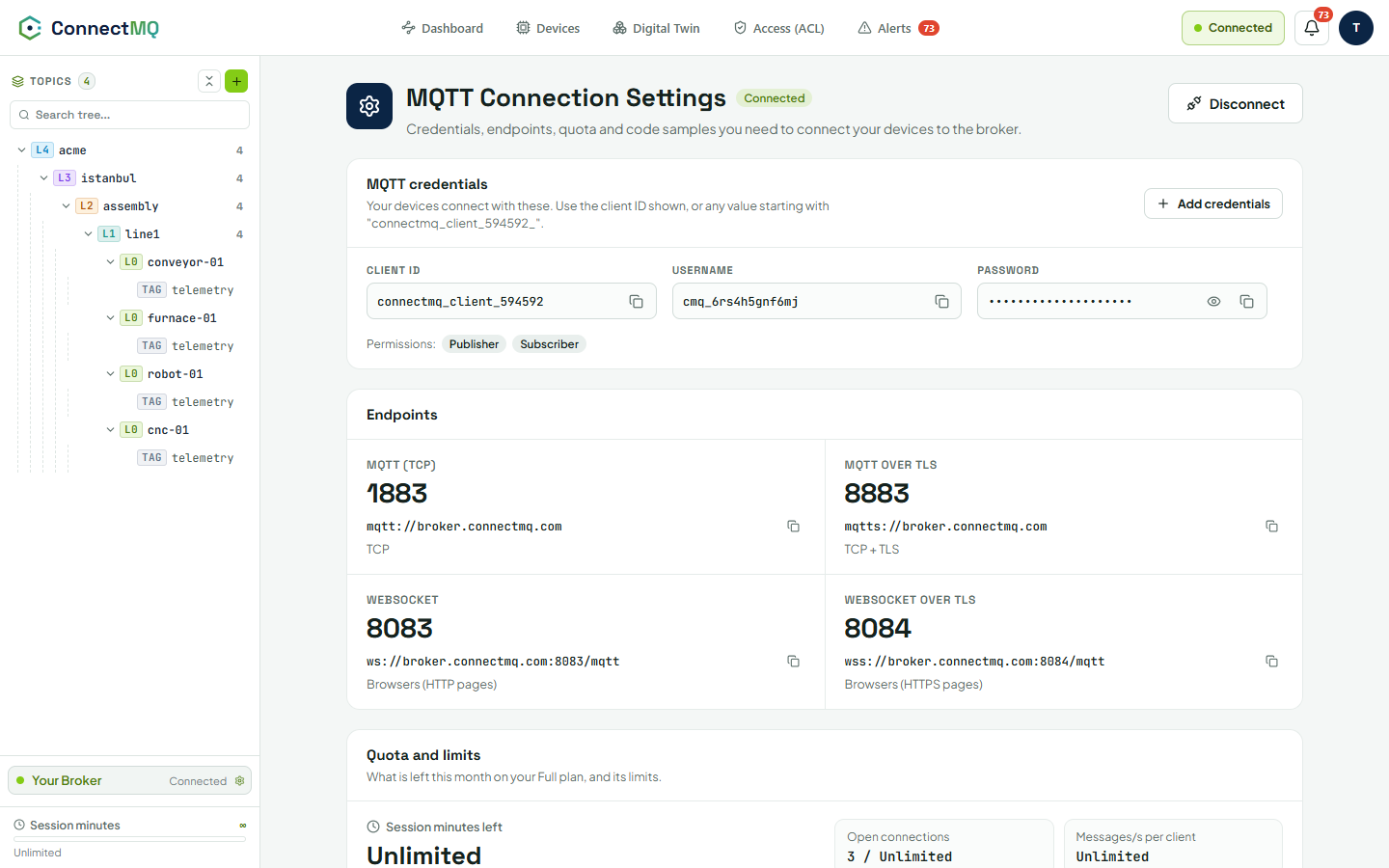
You need four values: host broker.connectmq.com, Client ID, Username and Password (click the eye icon to show it).
Publish your first message
With the mosquitto clients installed, run this (Linux shown; on macOS or Windows replace --capath /etc/ssl/certs with --tls-use-os-certs):
mosquitto_pub -h broker.connectmq.com -p 8883 --capath /etc/ssl/certs \
  -i YOUR_CLIENT_ID_quickstart \
  -u YOUR_USERNAME -P 'YOUR_PASSWORD' \
  -t 'acme/istanbul/assembly/line1/cnc-01/telemetry' \
  -m '{"temperature":62.4,"spindleRpm":11950,"vibration":2.3}'
Replace YOUR_CLIENT_ID with your issued client ID; the _quickstart suffix keeps it unique (see Client IDs).
Prefer code? Use the Python, Node.js or ESP32 sample instead.
Watch it in the console
The topic appears in the TOPICS tree on the left, grouped by its levels. Click Add Topic on the dashboard, paste the topic path and click Subscribe to topic: a card with live values and sparklines appears.
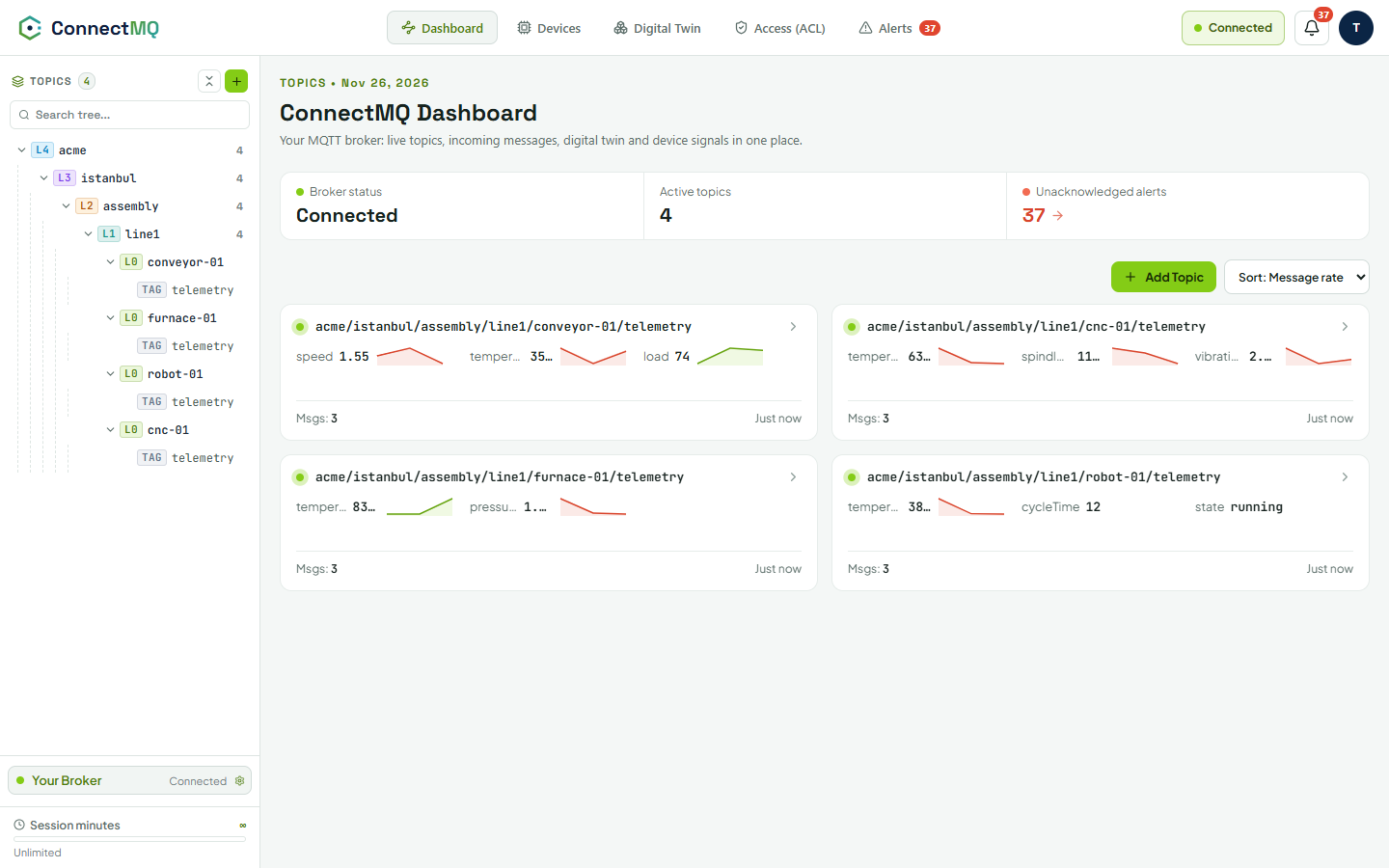
Publish a few more messages and watch the values change. Click a topic to open its detail page.
Add an alert
On the topic page, click the bell on the temperature card, set temperature > 64 and click Save rule. Every message above the limit now raises an alert in Alerts and the bell at the top right. See Alert rules & alerts.