
Credentials & endpoints
Everything a device needs to connect to your ConnectMQ broker is on one page of the console: the host, four endpoints and the MQTT credentials.
Where to find them
Open the ConnectMQ console, then click Your Broker at the bottom of the left sidebar (or MQTT Connection Settings in the user menu at the top right). The MQTT Connection Settings page opens.
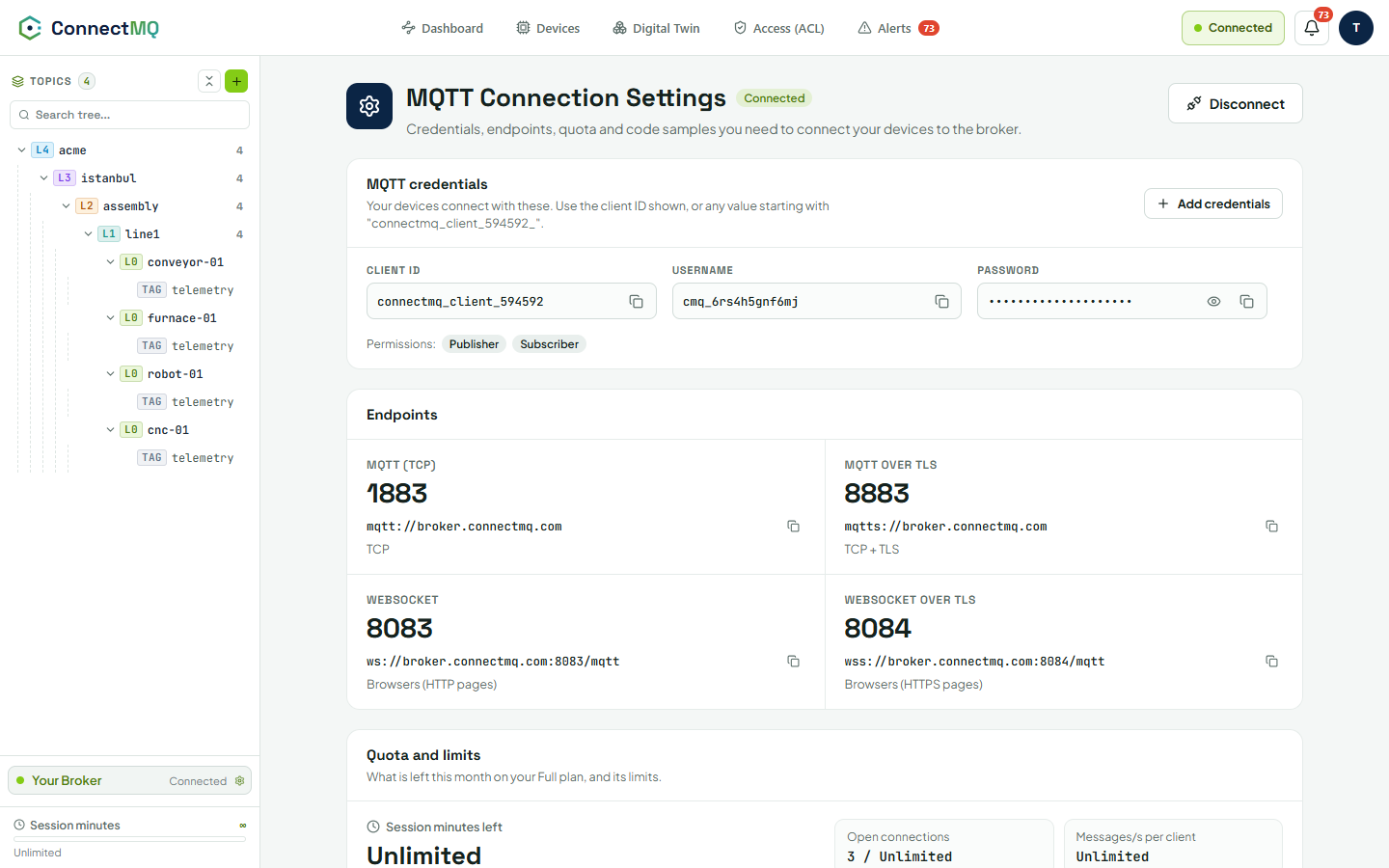 MQTT Connection Settings: credentials at the top, endpoints below.
MQTT credentials
| Field | What it is |
|---|---|
| Client ID | The client identifier issued for these credentials, for example connectmq_client_594592. Your clients connect with this exact value or any value that starts with it followed by an underscore, for example connectmq_client_594592_sensor-01. See Client IDs & sessions. |
| Username | The MQTT user name, for example cmq_6rs4h5gnf6mj. |
| Password | Hidden by default. Click the eye icon to show it, or the copy icon to copy it. |
| Permissions | What the credentials may do: Publisher, Subscriber or both. |
Every field has a copy button. Use Add credentials to create a separate set for another device group, service or team, so that you can revoke one without touching the others.
Keep the password secret
Anyone with the username and password can publish to and read from your broker (unless you restrict them with access control). Do not commit credentials to source control. Store them in environment variables or a secrets manager, and give each device group its own credentials.
Endpoints
All private brokers use the host broker.connectmq.com. Your credentials, not the host name, decide which broker (tenant) a client lands on.
| Endpoint | URL | Port | Use it for |
|---|---|---|---|
| MQTT over TLS | mqtts://broker.connectmq.com | 8883 | Recommended for devices, gateways and back-end services. |
| WebSocket over TLS | wss://broker.connectmq.com:8084/mqtt | 8084 | Web apps served over HTTPS. |
| MQTT (TCP) | mqtt://broker.connectmq.com | 1883 | Quick tests on a trusted network only. Not encrypted. |
| WebSocket | ws://broker.connectmq.com:8083/mqtt | 8083 | Web pages served over plain HTTP (local development). Not encrypted. |
- The WebSocket path is always
/mqtt. - MQTT 3.1.1 and MQTT 5 are supported on every endpoint.
- TLS uses a publicly trusted certificate, so the operating system's CA store is enough: you do not need to download a certificate. On microcontrollers, load the root CA (see ESP32 / Arduino).
- Outbound ports 8883 and 8084 must be open on your network. On networks that only allow HTTPS, use
wss://on 8084.
Which endpoint should I use?
Devices and servers: 8883 (MQTT over TLS). Browsers: 8084 (WebSocket over TLS). Use 1883 and 8083 only for local experiments; credentials travel in clear text on those ports.
Connection checklist
| Setting | Value |
|---|---|
| Host | broker.connectmq.com |
| Port | 8883 (TLS) |
| TLS | On, verify the server certificate |
| Protocol | MQTT 5 (or 3.1.1) |
| Client ID | Your issued client ID, or <client ID>_<anything> |
| Username / password | From MQTT credentials |
| Keep alive | 30–60 seconds is a good default |
Next, copy a sample for your platform: command line, Python, Node.js, ESP32, browser or other languages.
Code samples in the console
At the bottom of the MQTT Connection Settings page, Developers / Code Samples links to ready-to-run samples for Python, Node.js, ESP32, Go, the mosquitto CLI, Java, C# (.NET), Rust, Dart (Flutter), Swift / Kotlin, Home Assistant and Node-RED. They come from the open-source connectmq/mqtt-code-samples repository.
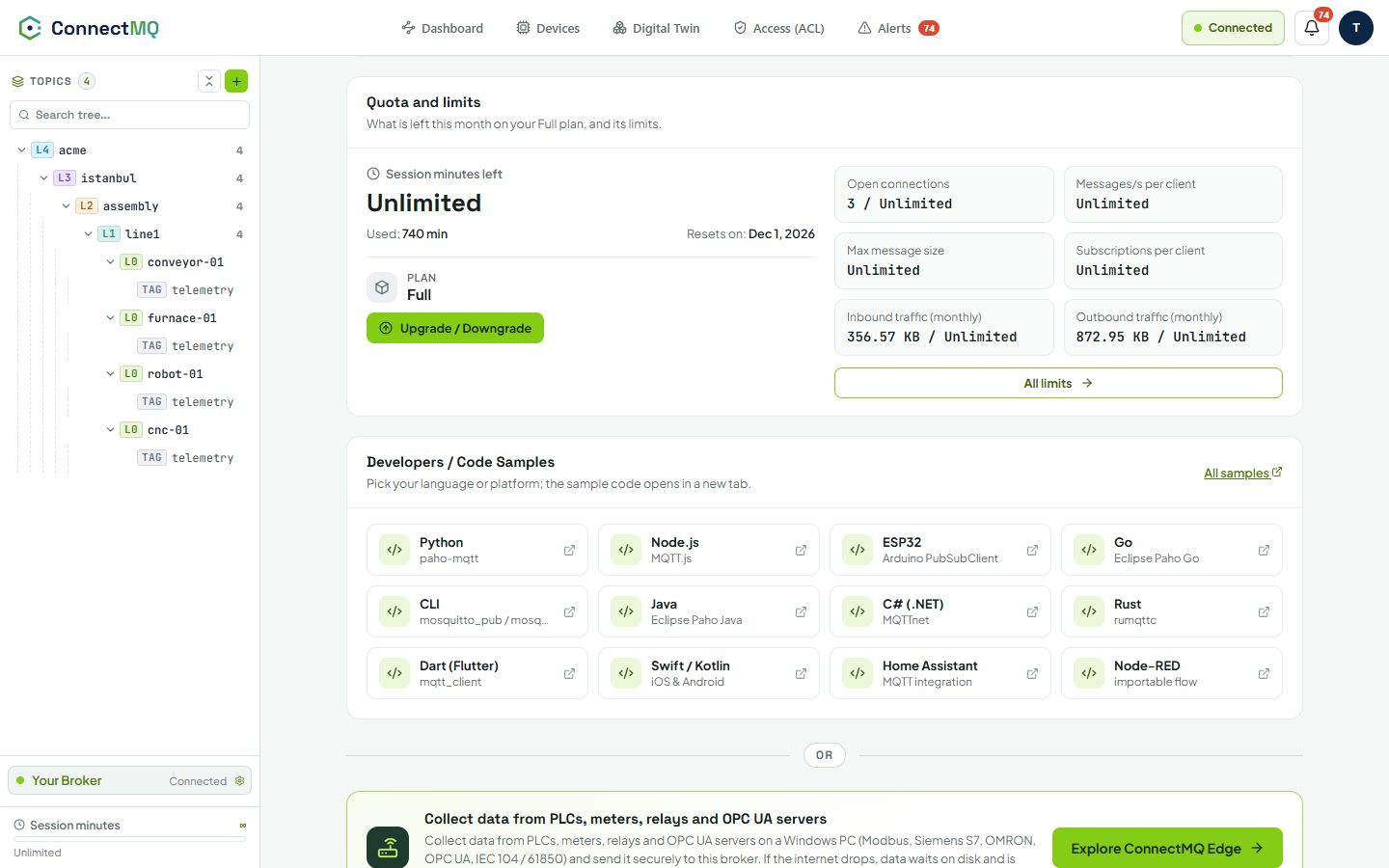
Quota and limits on this page
The same page shows Quota and limits: session minutes left this month (or the one-time Free allowance), your plan, open connections, messages per second per client, maximum message size, subscriptions per client and monthly traffic. Click All limits to see every limit of your plan, and Upgrade / Downgrade to change plans. The limits are explained in Plans & broker limits.