
Devices
ConnectMQ builds a device list from your topic paths, so there is nothing to register. The Connections tab shows every MQTT client connected to your broker.
How devices are found
The L0 level of an ISA-95 style topic (<enterprise>/<site>/<area>/<line>/<device>/<signal>) is the device. Every topic under the same device path is grouped into one row. See Design your topics.
Add Device opens the same dialog as Add Topic: subscribe to an existing path or build a new ISA-95 path.
Devices tab
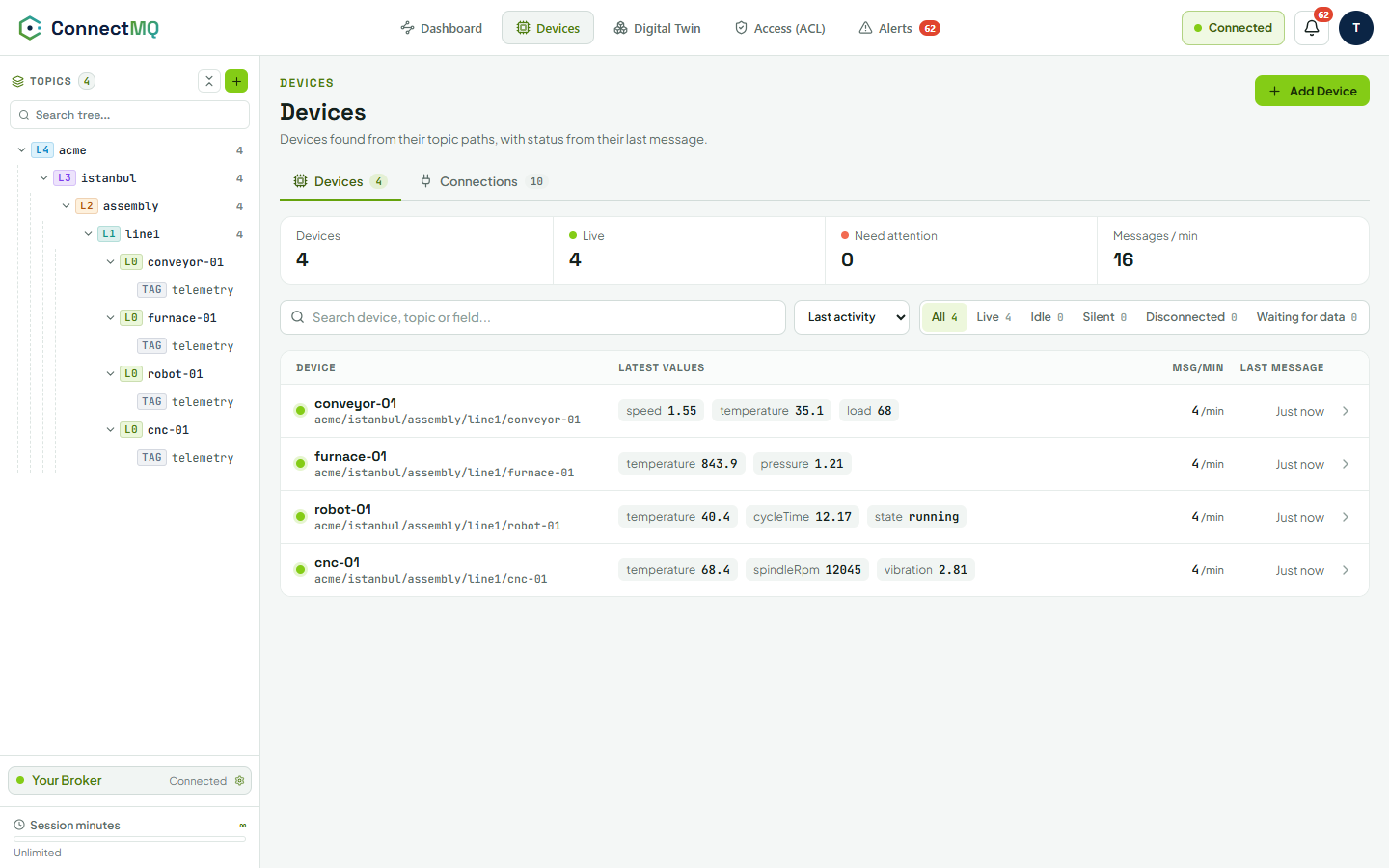
The summary shows the number of Devices, how many are Live, how many Need attention and the Messages / min across all devices.
Each row shows the device name and path, its latest values, the message rate and the time of the last message. Click a row to see the device's topics.
| Status | Meaning |
|---|---|
| Live | A message in the last minute. |
| Idle | Last message 1–10 minutes ago. |
| Silent | No message for more than 10 minutes. |
| Disconnected | The client that publishes for the device has disconnected. |
| Waiting for data | Known topic, no message yet. |
Filter by status, search for a device, topic or field, and sort by Last activity, Name or Message rate.
Delete device removes the device's stored topics and last values (owners and admins). If it publishes again, it reappears; to block it for good use access control or delete its credentials.
Connections
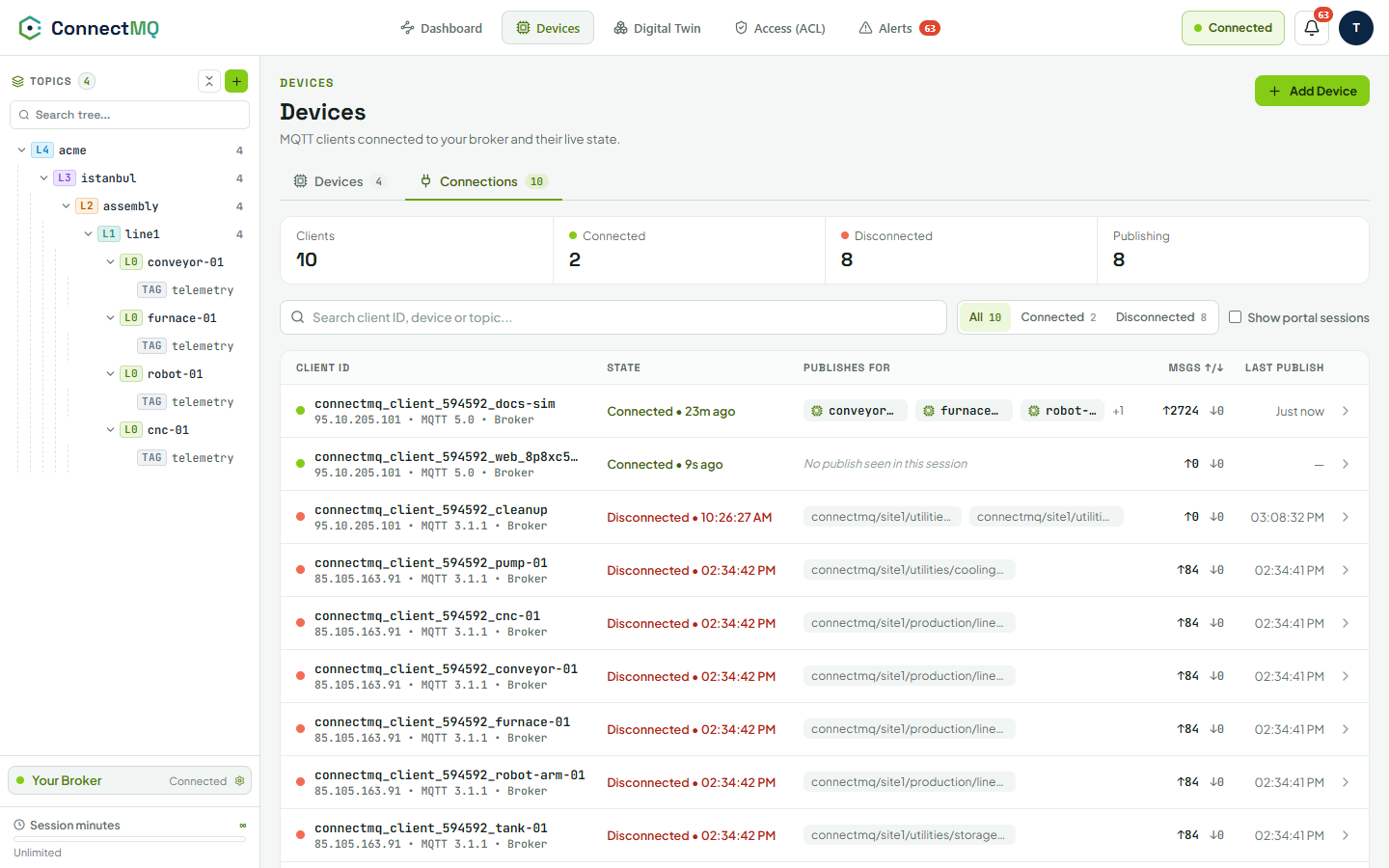
The Connections tab lists the MQTT clients of your broker: devices, gateways, services and (optionally) console sessions.
| Column | Meaning |
|---|---|
| Client ID | With the client's IP address, MQTT version and broker. |
| State | Connected or Disconnected, and since when. |
| Publishes for | The devices/topics this client publishes. |
| Msgs ↑/↓ | Messages published and received. |
| Last publish | Time of the last message. |
Click a client for its details: username, IP address, protocol, keep alive, clean start, session expiry, subscriptions, messages and data in/out, published topics and its connection history (30 days) with disconnect reasons. Tick Show portal sessions to include console tabs.
Connection details are refreshed by the broker every 30 seconds; connects and disconnects appear immediately.
Finding connection problems
A client that keeps connecting and disconnecting is usually sharing its client ID with another client (reason Session taken over). The connection history shows the reason codes; look them up in Troubleshooting.
Limits that show up here
The number of clients connected at the same time is limited by your plan (Free 5, Basic 100, Scale 1,000), and so is the rate of new connections. See Plans & broker limits.