
Alert rules & alerts
An alert rule watches one topic and raises an alert when a message matches its condition, for example {temperature} > 64. Alerts appear on the Alerts page, under the bell, in the digital twin and as desktop notifications.
Create a rule
There are three ways to start:
- On a topic page, click the bell on a value card (fastest: topic and field are pre-filled).
- Alerts → Rules → Add Rule.
- Actions → Add alert rule on a topic page.
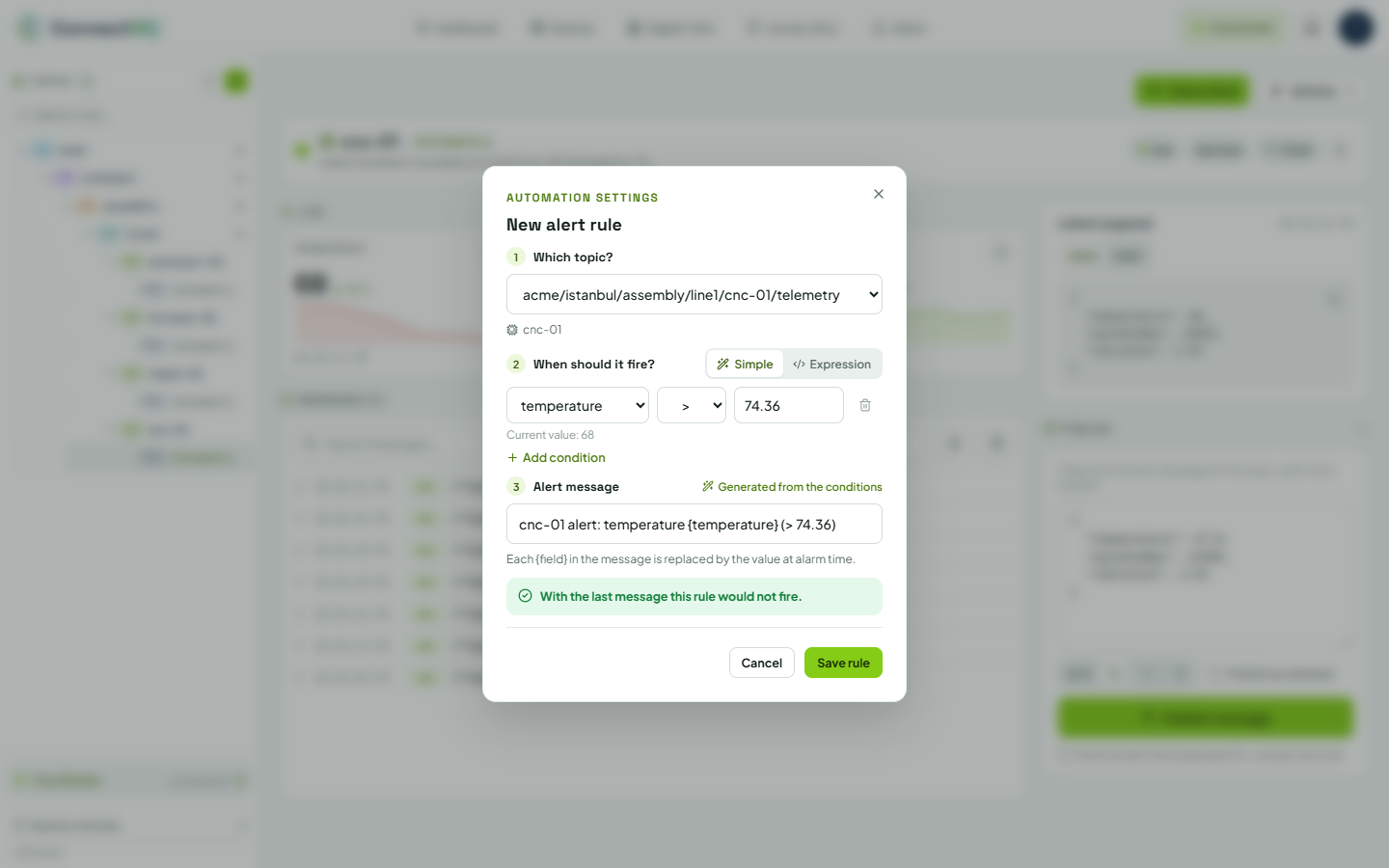
Which topic?
Pick the target topic. Only topics the console is subscribed to are listed; subscribe first if yours is missing.
When should it fire?
- Simple: choose a field, a comparison (
>,>=,<,<=,==,!=) and a value. Add condition adds more rows; choose whether all (AND) or any (OR) must match. Each row shows the field's current value. - Expression: write the condition yourself with fields in curly braces, for example
{temperature} > 64 AND {vibration} >= 3. Supported:AND,OR,>,<,==,>=,<=. The editor shows ✓ Valid rule or ✗ Invalid syntax, and DETECTED SIGNALS lets you click a field to insert it.
A live preview tells you whether the last message would fire the rule.
Alert message
Write the alert message template. Each {field} is replaced by the value at alarm time, for example:
CNC-01 is running hot: temperature {temperature} °C (limit 64)Only fields of the message payload can be used as placeholders. Use the generated message fills in a text built from your conditions.
Keep Rule active on and click Save rule. The first time, the browser asks whether ConnectMQ may show desktop notifications; allow it to get a notification titled ConnectMQ Alert for every alert.
When alerts are raised
Rules run in the console
Rules are evaluated by the ConnectMQ console in your browser, on the messages it receives. Alerts are raised while at least one console tab of your organization is open and connected. They are saved on the server and shared with everyone in your organization, so they stay visible after a refresh. For alerting while nobody has the console open, run your own subscriber (for example a small service) that checks your thresholds.
A rule fires for every matching message. A device that publishes every 2 seconds above the limit raises an alert every 2 seconds, so choose thresholds and publish intervals accordingly.
Alerts page
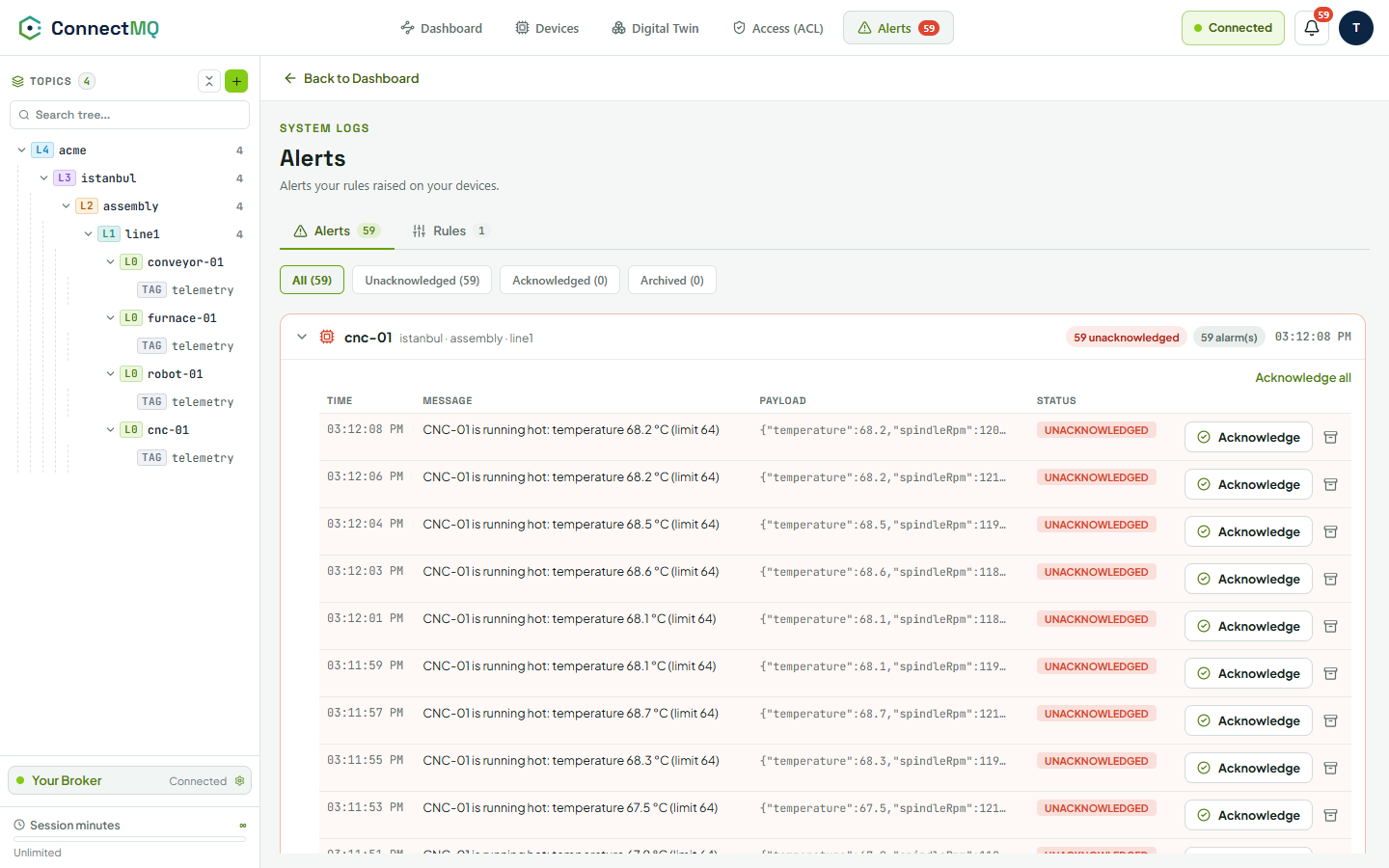
Open Alerts in the top bar. The badge shows the number of unacknowledged alerts.
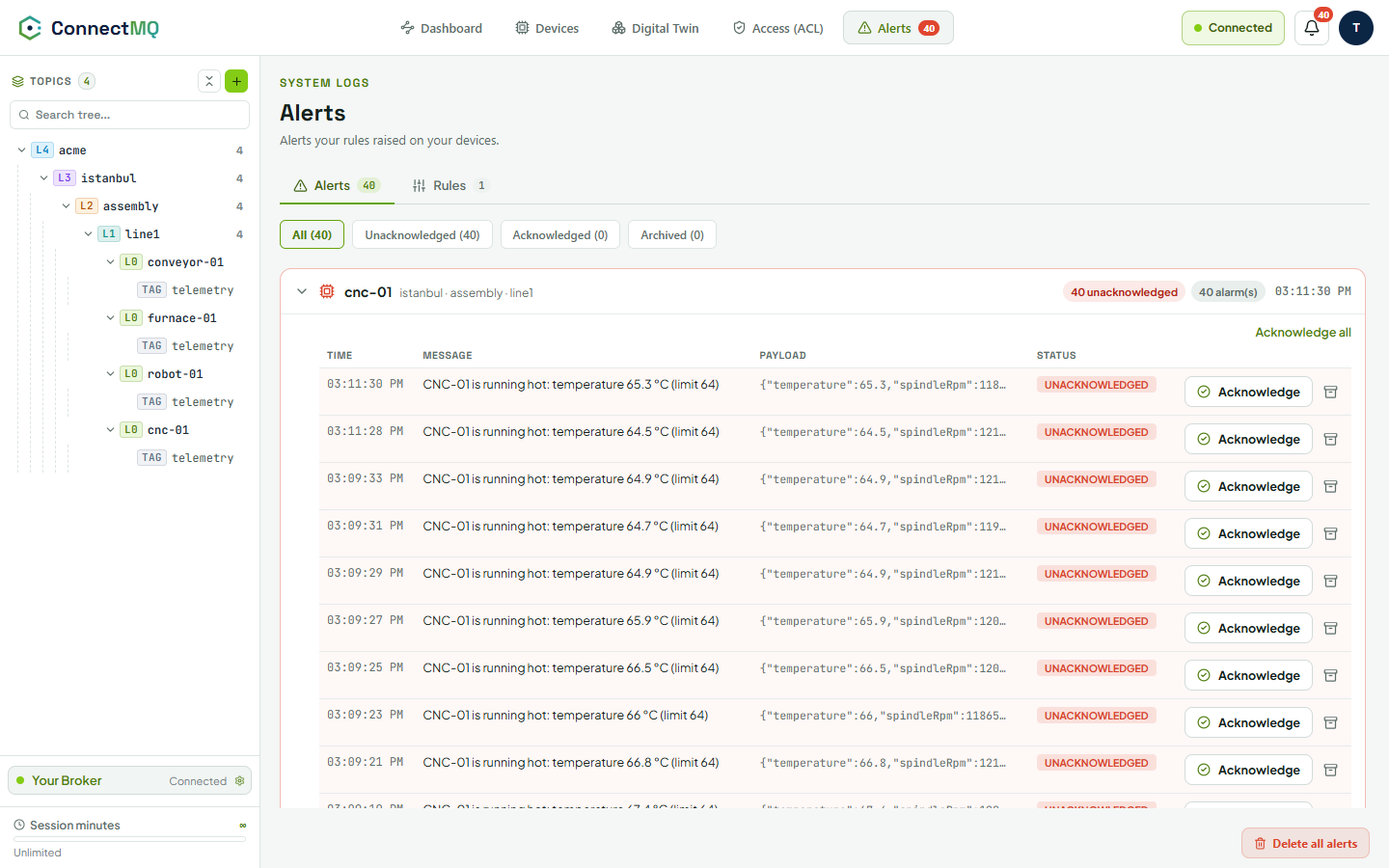
- Filters: All, Unacknowledged, Acknowledged, Archived.
- Alerts are grouped by device, with the time, message, the payload that triggered it and the status.
- Acknowledge marks one alert as handled; Acknowledge all handles a whole group. The archive icon moves an alert to Archived.
- Delete all alerts removes every recorded alert (it asks for confirmation).
Rules tab
The Rules tab lists every rule with its topic, condition, message template and status.
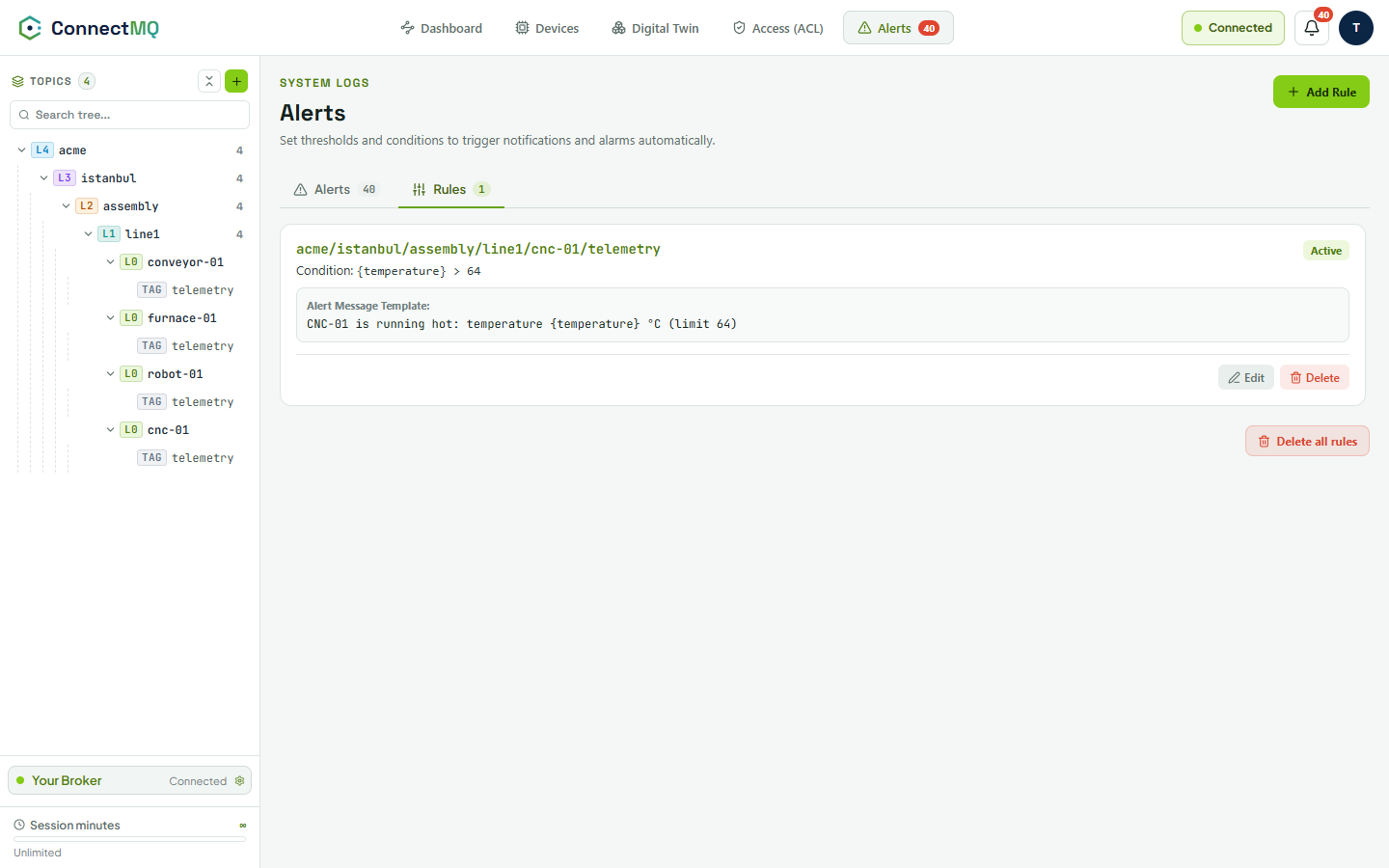
- Click the status badge to switch a rule between Active and Inactive.
- Edit opens the rule editor; Delete removes the rule (with Undo).
- Delete all rules removes all of them.
Notifications bell
The bell in the top bar lists Unacknowledged alerts with Acknowledge per alert and Acknowledge All. Alert Rules opens the Rules tab and View all the Alerts page.
Alert rules, alerts and notifications are included in every plan, including Free.